IP Addresses in Azure:
In the classic portal or when you do the classic deployment we have the commands “Set-AzureReservedIPAssociation” and “Set-AzurePublicIP” to create Public Reserved IP and Instance Level Public IP respectively.
You can read the below blogs to understand the difference https://docs.microsoft.com/en-us/azure/virtual-network/virtual-networks-instance-level-public-ip https://blogs.technet.microsoft.com/canitpro/2014/10/28/step-by-step-assign-a-public-ip-to-a-vm-in-azure/
Now, there may be a slight difference how these IPs behave when you deploy a VM using the new deployment model which is the “Resource Manager” type. The above commands wouldn’t work for the new deployment Model.
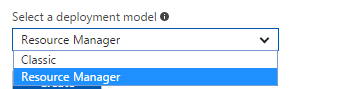
Assigning Dynamic Public IP to VM: (using Portal)
When you deploy a VM to one of your Virtual Network, you can configure the Public IP during this time.
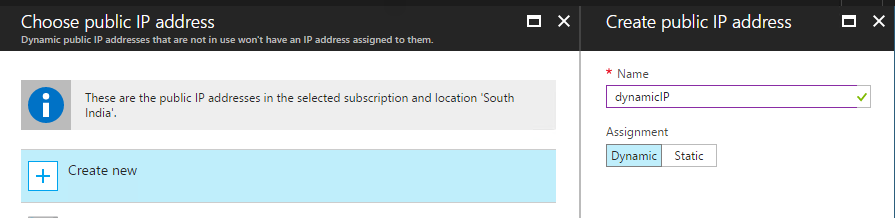
The IP is dynamic which means it might change when you reboot the server
Assigning Static Public IP to VM: (using Powershell)
You can list all the IP Addresses allotted to your resource group name using Get-AzureRmPublicAddress. In the below picture we can see there is one dynamic IP
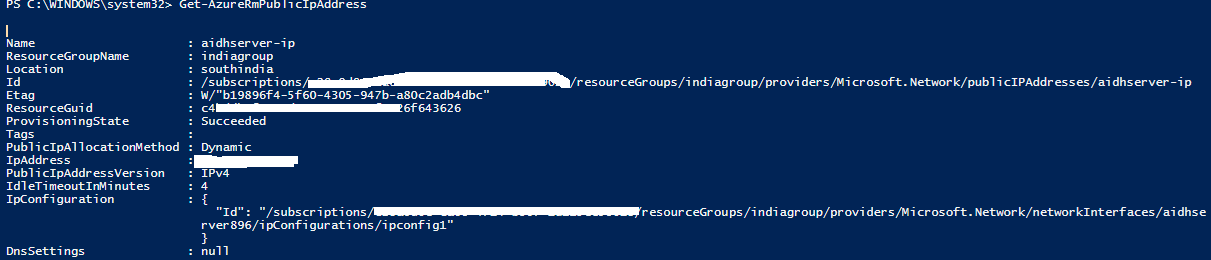
Now, let’s try to get one Static Public IP using PowerShell. Here are the command for the same.

Now lets run the Get-AzureRmPublicAddress again and now we can see another IP in this resource group and this is Static.

You can bind this to a VM from Azure Portal or through powershell Set-AzureRmPublicIpAddress
**Now the difference between these IPs are, the static IP will be reserved even after the machine is re started”
Assigning Static/Reserved IP to Cloud Service:
You cannot assign static IP to web role or Worker role instances but you can assign it to the cloud service only.
Here I am creating a reserved IP and assigning it to my cloud service
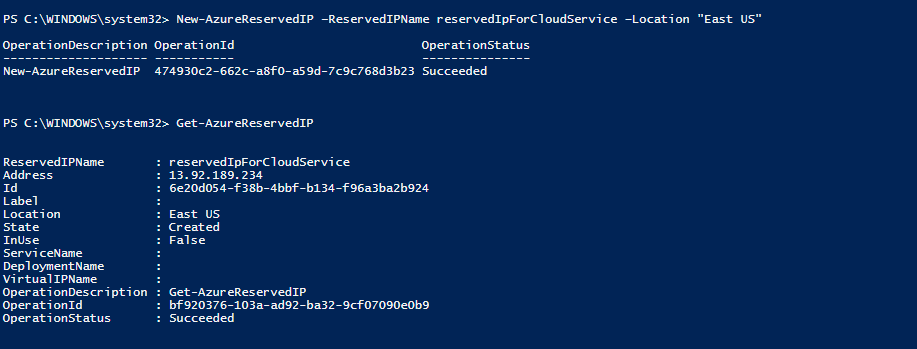
And now you can assign using
Set-AzureReservedIPAssociation -ReservedIPName reservedIpForCloudService -ServiceName “yourservice” (you can run get-AzureService to get the servicename)